Set up your team’s safety training in four steps
A screen-by-screen walkthrough of your Unlimited Online Training Members Area. Create your company account, add your employees, assign courses in English or Spanish, and download completion certificates, all from one dashboard.
As low as $1.33 per employee per month on the 250-employee plan.
- 300+ safety topicsUnlimited access to the full course library
- English and SpanishAssign training in the language your team speaks
- Proof of understandingEmployees answer questions to move through each course
- Trusted since 2000More than 25 years in safety training
One subscription. Every course. No limits.
Every plan includes all 300+ courses in English and Spanish, the full Members Area and completion certificates. You only choose how many employees to train, and bigger teams get the best value.
- Instant access after checkout
- Secure, encrypted payments
- Bulk discounts for 250+ employees
Per-employee prices are the yearly plan price divided by its employee accounts and 12 months. Training more than 250 people? Call (205) 600-5983 (Monday–Friday, 8 AM–5 PM CT), email info@safetytrainingdirect.com, or use the chat button on our website.
Create your company account
After checkout you’ll get a confirmation email with your invoice. Sign in to the Members Area, and the first thing you’ll see is this short form. Your employees, groups, courses and reports will all live inside your company account.
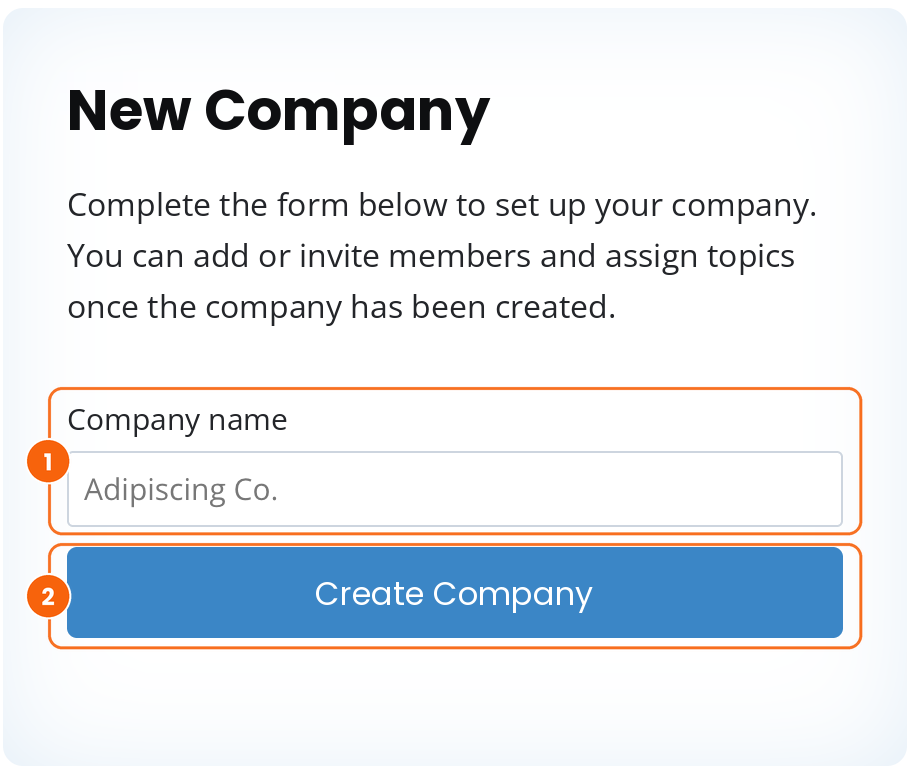
- Enter your company name in the Company name field.
- Click Create Company. The page refreshes and your Members Area dashboard is ready.
Your dashboard: three shortcuts to everything
Your dashboard opens with three shortcuts. They’re the only places you need to go to run your team’s training.

- Manage Employees: add your team and organize them into groups (Step 2).
- Assign Topics: choose which courses each employee takes (Step 3).
- Team Insights: follow progress, download reports and certificates (Step 4).
Your Members Area menu, on every page
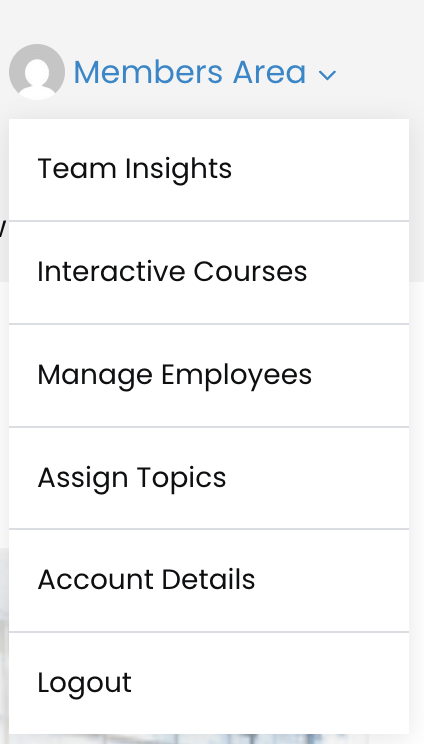
Once you’re signed in, a Members Area menu appears at the top of every page of the website. Use it to jump to any part of your account from anywhere:
- Team Insights for progress, reports and certificates
- Interactive Courses to browse and preview every course
- Manage Employees for people and groups
- Assign Topics to give out training
- Account Details for your own login and password
Add your employees and organize them into groups
Bring your team in one person at a time, or upload everyone at once from a spreadsheet. You can add as many employees as your plan includes.
Add employees one at a time
Best for a small team, or for adding new hires later.
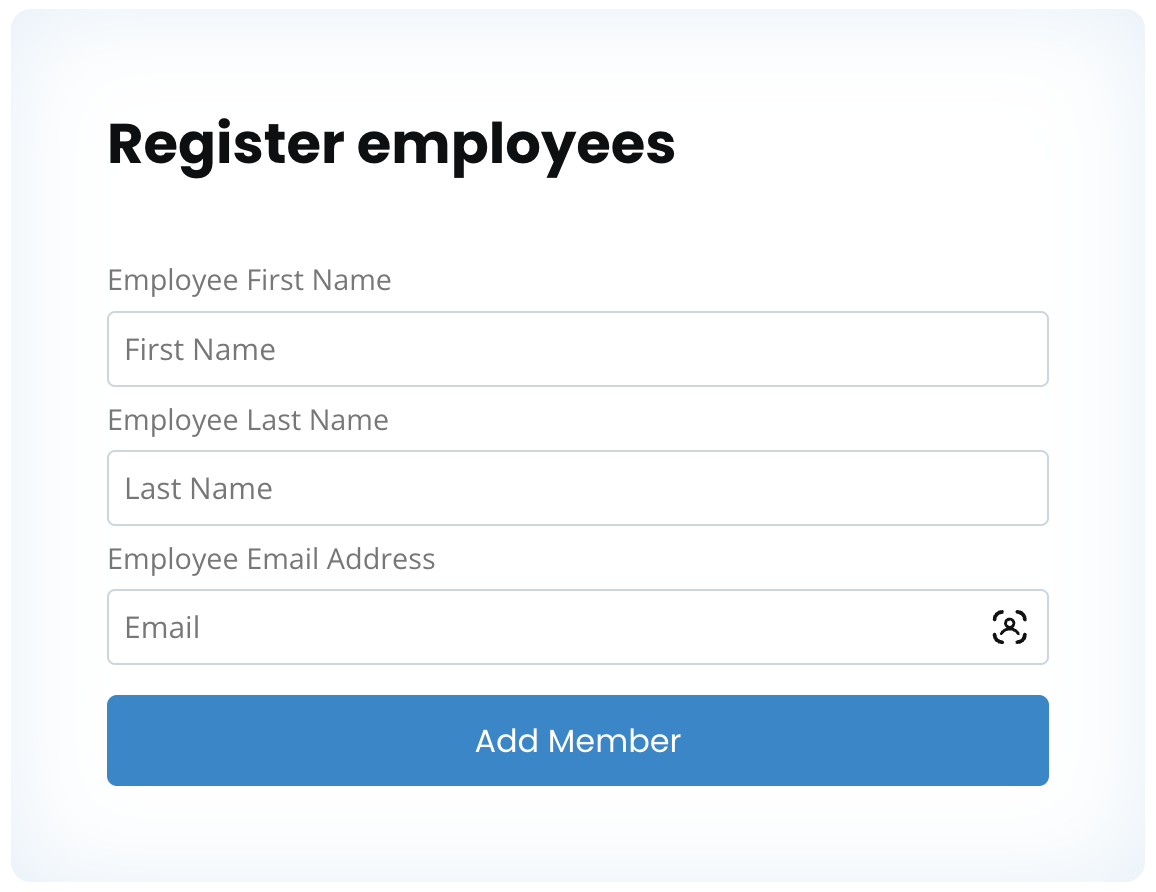
Enter the employee’s first name, last name and email address, then click Add Member.
Or add everyone at once with a CSV file
For a larger team, upload your whole list in one go.
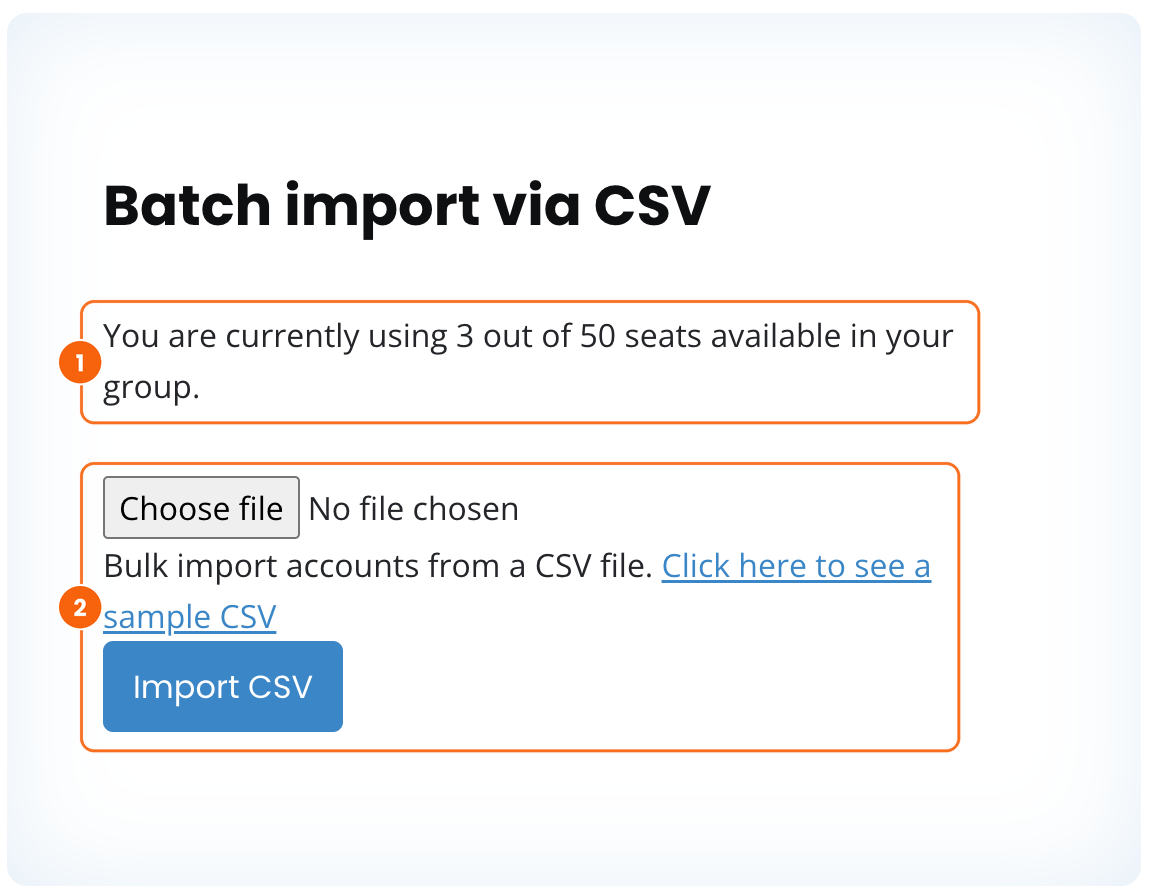
- Your seat count shows how many employee accounts you’ve used out of your plan’s total.
- Import your list. Download the sample CSV, add one employee per row and save it. Then click Choose file, select your file and click Import CSV.
Start from the sample file and keep its column headings as they are. It’s the easiest way to get a clean import the first time.
Organize employees into groups
Groups work like departments or job roles, such as Construction Crew, Warehouse Staff or New Hires. Once your team is grouped, giving the right training to the right people takes a few clicks.
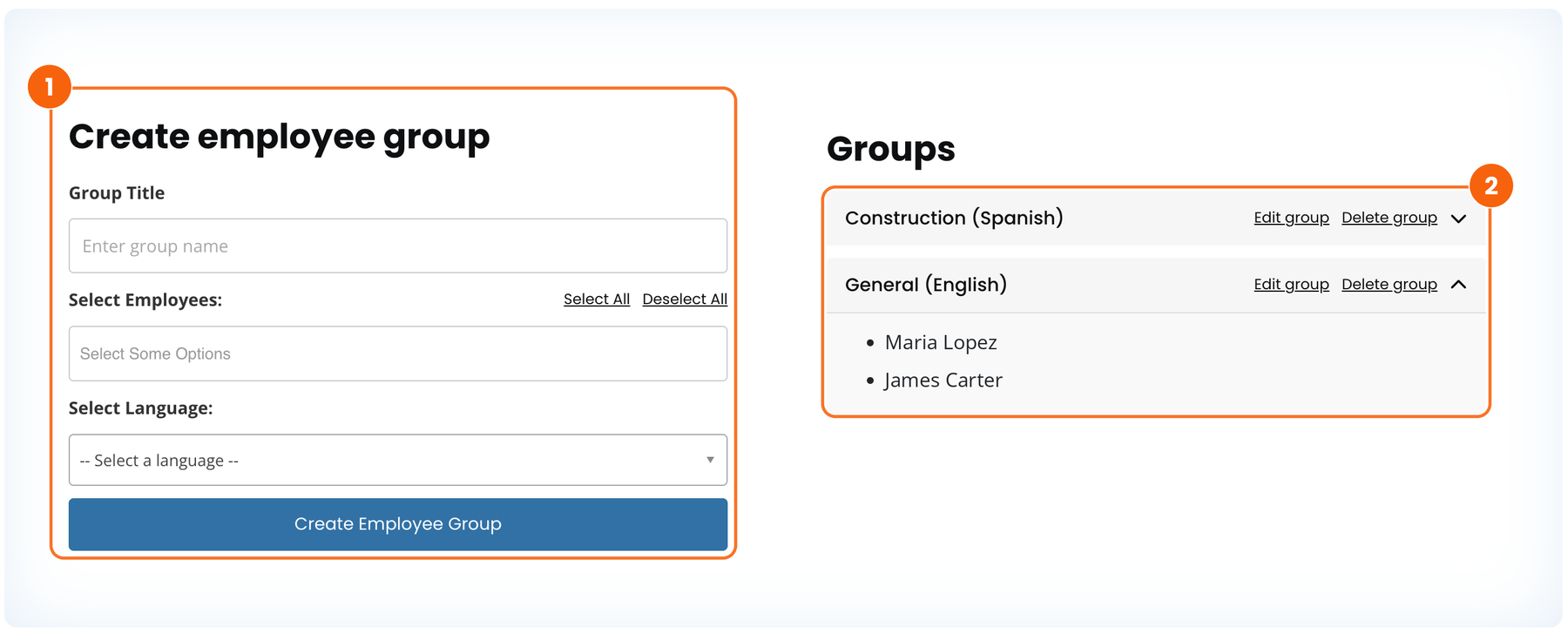
- Create a group. Enter a group title, select its employees (or use Select All) and choose the group’s language, English or Spanish. Then click Create Employee Group.
- Review your groups. Expand any group to see its members, or use Edit group and Delete group. Deleting a group never deletes the employees in it.
Edit a group at any time
Teams change, and your groups can change with them. Click Edit group to open this window.
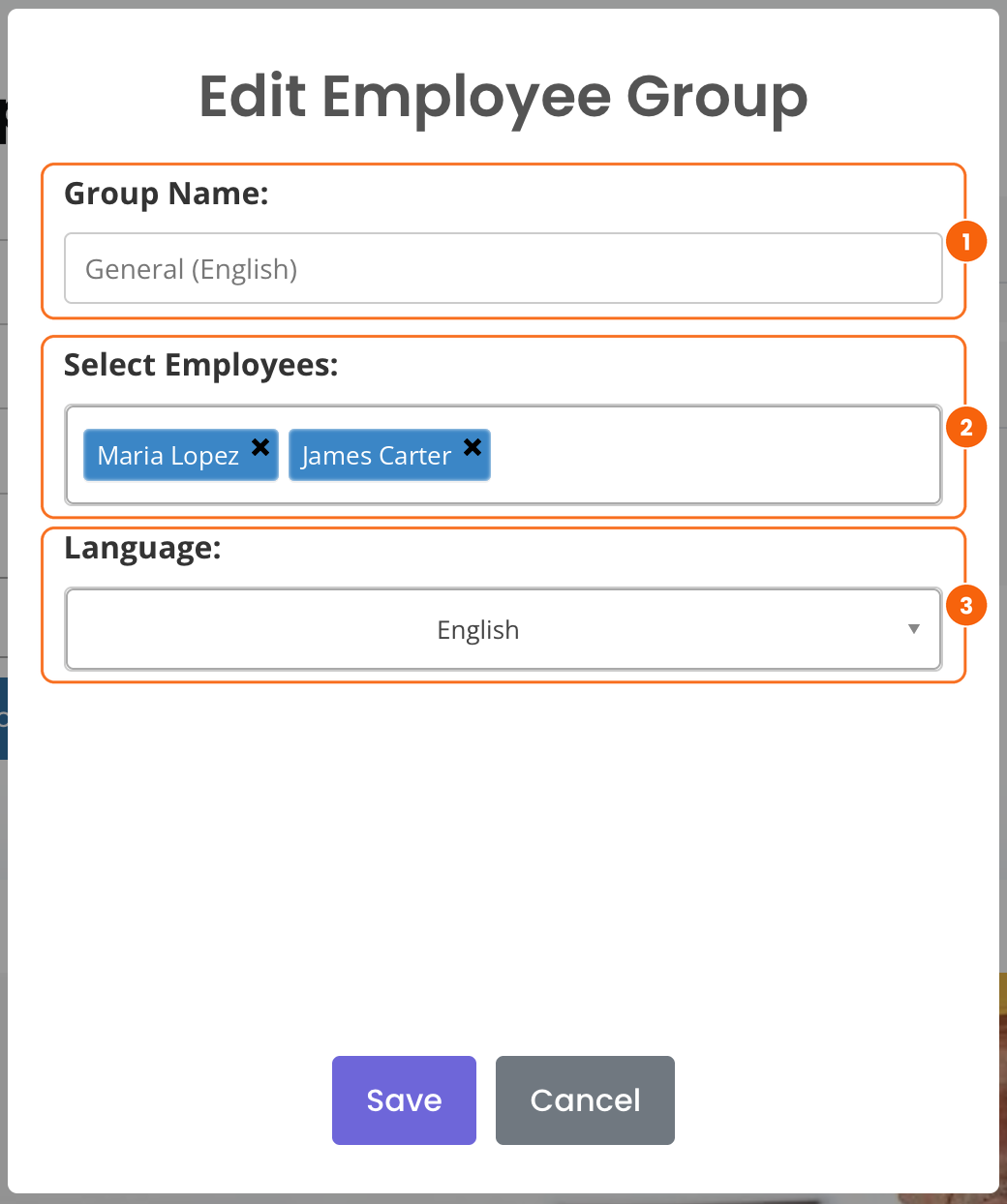
- Rename the group.
- Add or remove employees. Click the field to add someone, or the × beside a name to remove them.
- Change the language if needed, then click Save.
Train your whole team for less
On the 100-employee plan, that’s just $1.66 per employee per month, with every course included.
Assign the right training to the right people
On the Assign Topics page, courses are called topics. The Grant Access form narrows your choices as you go, so you only see the employees and topics that match what you’ve selected.
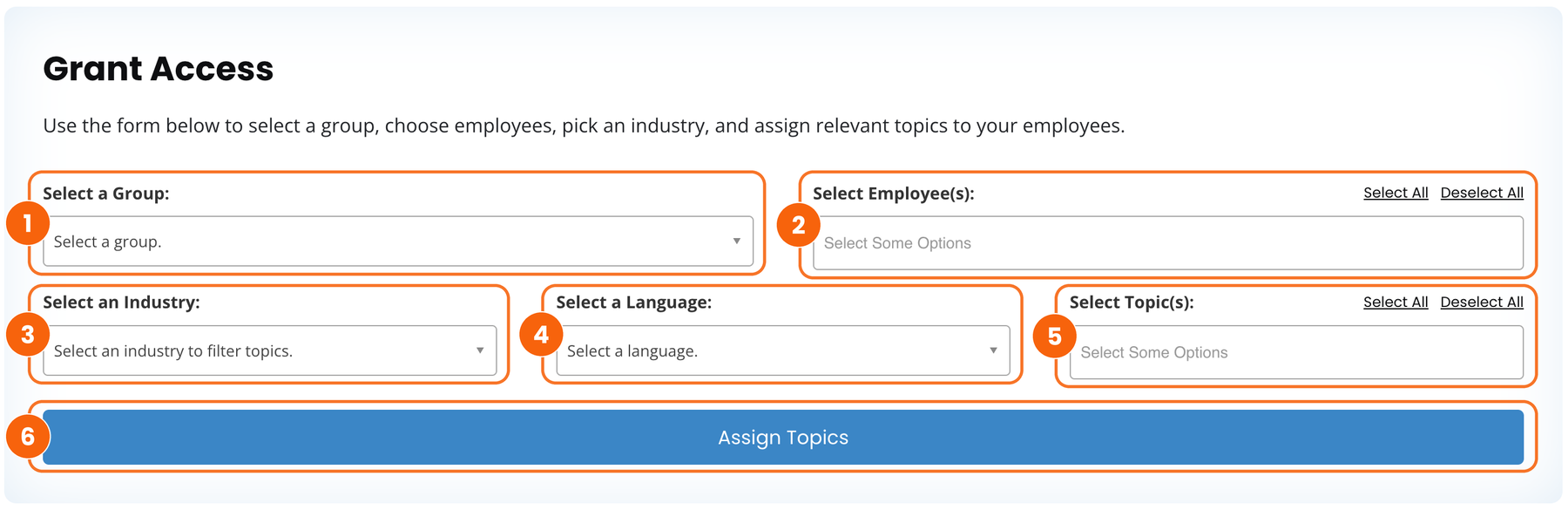
- Select a group. This decides which employees you can choose from.
- Select employees from that group: one, several, or Select All.
- Select an industry, such as Transportation & Warehouse.
- Select a language, English or Spanish.
- Select topics. Once the industry and language are set, the matching topics appear here. Choose as many as you need.
- Click Assign Topics. The selected employees now have access to those courses.
Your employees are notified automatically. Each one gets an email listing their new courses. Their first email also includes a username and password, so they can sign in and start right away.
Review access in the Enrollment Overview
Further down the same page, the Employees Enrollment Overview lists every employee who has at least one course. It’s where you check, change or remove access.
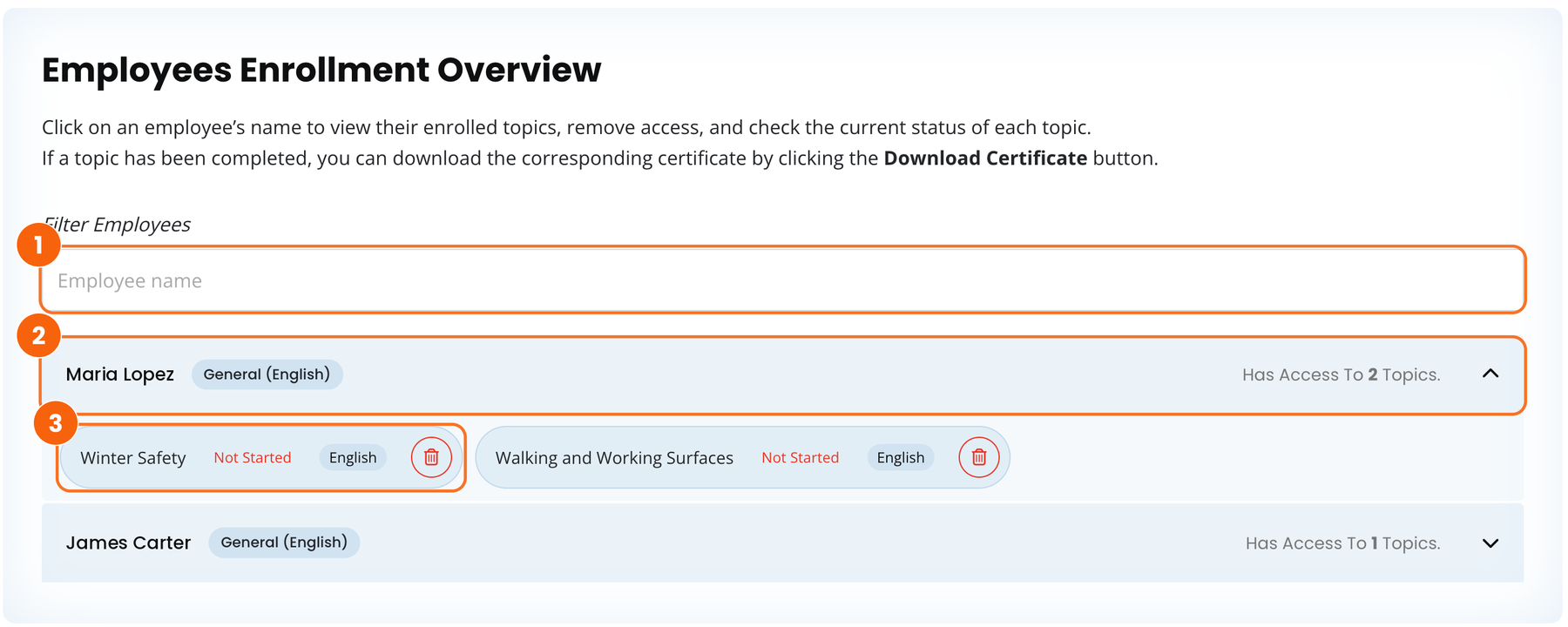
- Filter employees by name to find someone quickly.
- Click an employee’s name to expand their row and see their group and number of topics.
- Review each topic. Every topic shows its status and language. Click the red trash icon to remove that topic from that employee only.
Download an employee’s certificate
When an employee completes a course, a Download Certificate button appears beside it. Save it for your records, share it with an auditor, or send it to anyone who needs it.
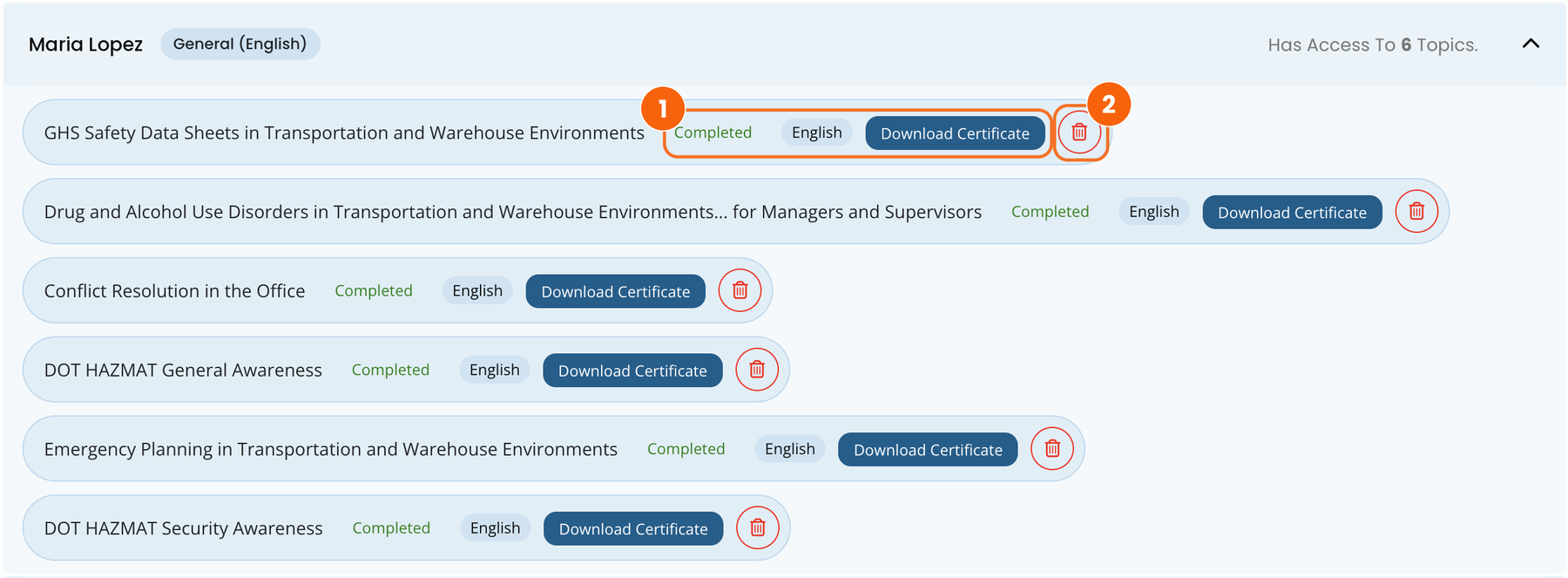
- Download Certificate saves the PDF certificate for that employee and course.
- Trash icon removes the course from the employee if they no longer need it.
Track progress and keep audit-ready records
Team Insights shows your whole team’s training progress, your subscription details and downloadable reports, all on one page.
Your team at a glance
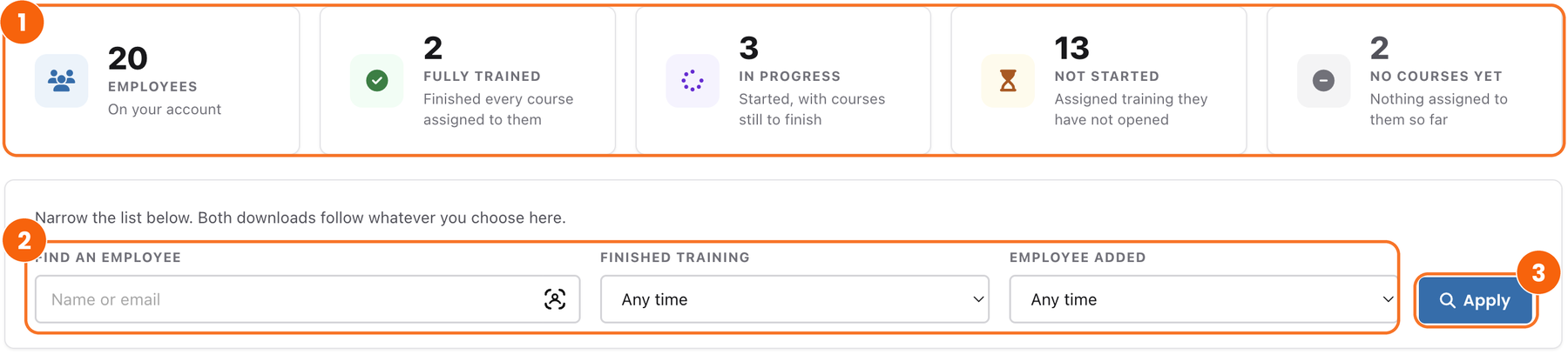
- Summary cards show how many employees you have and how many are fully trained, in progress, not started, or have no courses yet.
- Filters narrow the list by name or email, by when training was finished, or by when an employee was added.
- Apply updates the list. CSV reports downloaded from this page follow the same filters, so you get exactly the data you need.
Preparing for an audit? Filter for the period you need, click Apply, then download the CSV. It opens in Excel or Google Sheets with the details for every employee in your list.
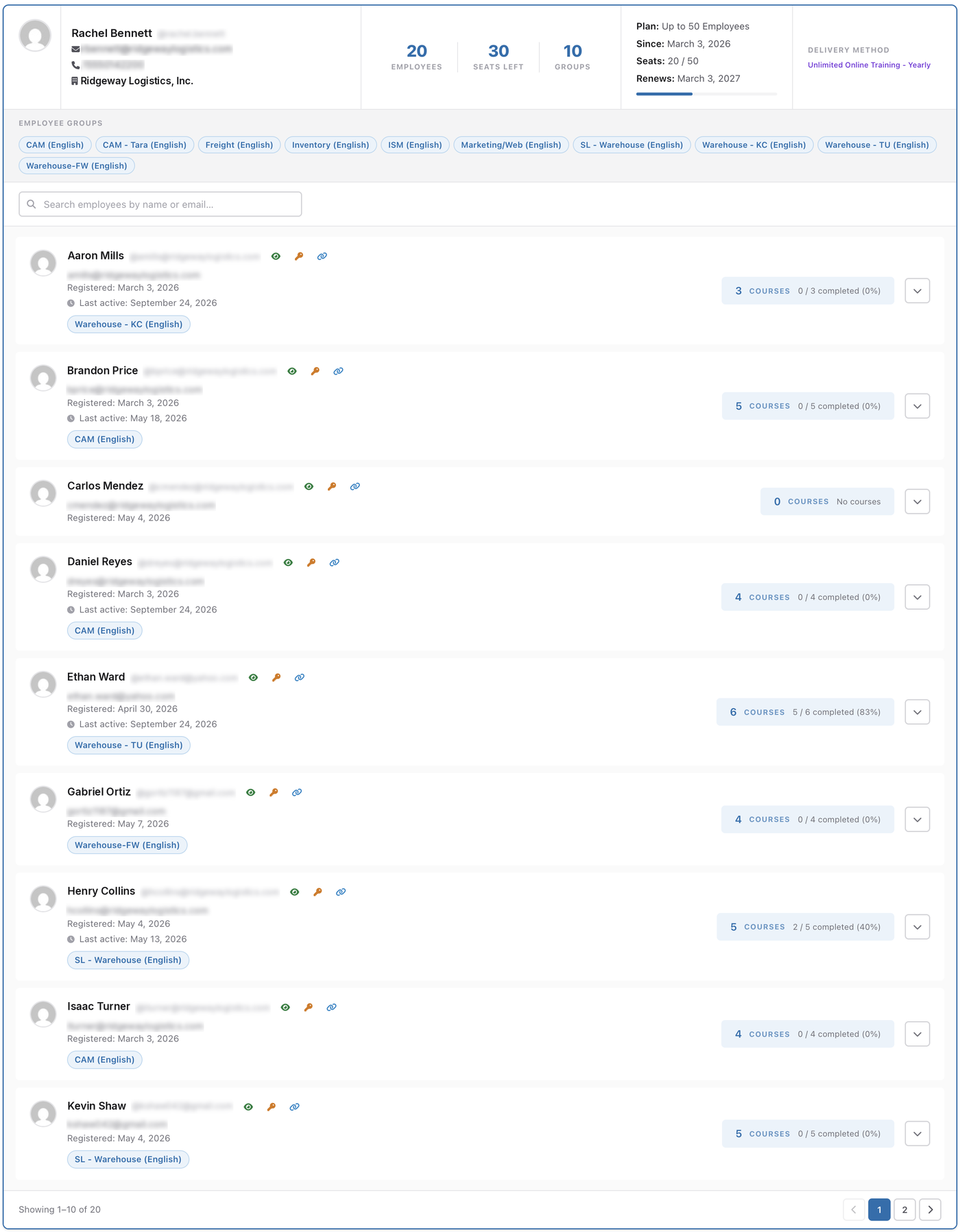
Your account, groups and employees
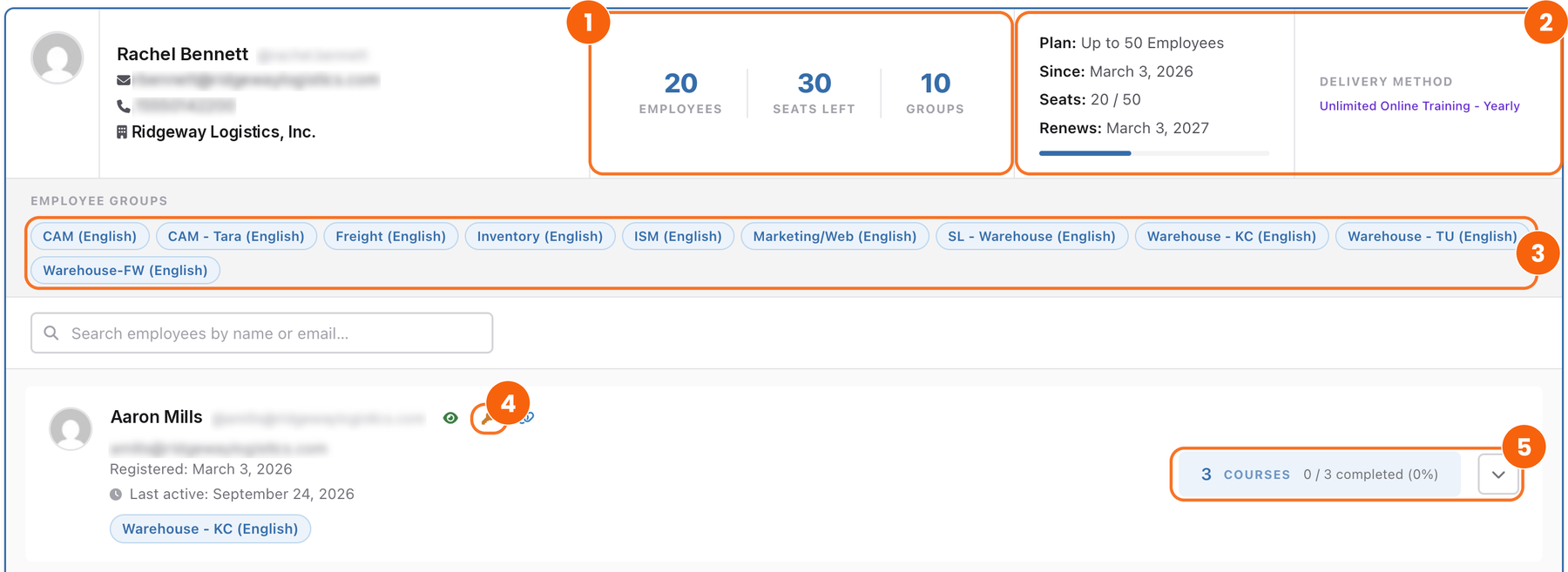
- Your numbers: total employees, seats left on your plan, and number of groups.
- Your subscription: plan size, start date, seats used, renewal date and delivery method.
- Employee groups: every group in your company, in one row.
- Password reset: if an employee can’t sign in, click the key icon to email them a reset link.
- Course summary: courses assigned and completed. Click the arrow to see each course’s industry, status, score, language and certificate.
Each employee card also shows their email, group, registration date and when they were last active, so it’s easy to spot anyone who hasn’t signed in yet.
View a full page of the employee list
Answers before you buy
How quickly can my team start training?
Right away. Access is instant after checkout, and you’ll receive a confirmation email with your invoice. Sign in, create your company account, add your employees and assign their first courses.
Each employee then receives an email with their courses and login details, so they can start the same day.
Which plan should I choose?
Choose the plan that covers the number of employees you need to train. Every plan includes the same thing: all 300+ courses in English and Spanish, the full Members Area and completion certificates. The only difference is the number of employee accounts.
The cost per person drops on the bigger plans: $2.49 per employee per month on the 50-employee plan, $1.66 on the 100-employee plan, and just $1.33 on the 250-employee plan. For more than 250 employees, contact us for bulk pricing.
Can my employees take courses in Spanish?
Yes. The full course library is available in English and Spanish.
To give someone Spanish training, put them in a group whose language is set to Spanish (Step 2), then choose Spanish in the Language field when you assign topics (Step 3). If your team includes both English and Spanish speakers, the simplest setup is one group per language, for example Warehouse (English) and Warehouse (Spanish).
How do I know my employees actually understood the training?
Every course is interactive. Employees answer questions after each video module and need the right answers to move on, so a completed course shows they understood the material, not just that they clicked through.
That distinction matters when your training records are reviewed. Each employee’s status, score and certificate are recorded in Team Insights.
Can I preview a course before assigning it?
Yes. As the account owner, open Interactive Courses from the Members Area menu, pick any course and go through it yourself before assigning it to your team.
What if I need more employee accounts?
You can see how many accounts you’ve used on the Manage Employees page and under Seats left in Team Insights.
If your team outgrows your plan, or you need more than 250 accounts (bulk discounts are available), call (205) 600-5983 (Monday–Friday, 8 AM–5 PM CT), email info@safetytrainingdirect.com, or message us using the chat button on our website.
Can I remove a course I assigned by mistake?
Yes. Go to Assign Topics and scroll down to the Employees Enrollment Overview. Click the employee’s name to expand their row, then click the red trash icon next to the course you want to remove.
Only that course is removed, and only for that employee. Their other courses, and anyone else assigned the same course, aren’t affected.
Where do I find an employee’s certificate?
A certificate becomes available as soon as an employee completes a course. You can download it in two places:
- Assign Topics: in the Employees Enrollment Overview, expand the employee’s row and click Download Certificate next to the completed course.
- Team Insights: click the arrow on the employee’s card to open their course list, where each completed course shows its certificate.
Certificates download as PDFs, so you can keep them with your training records, print them, or email them to a manager, client or auditor.
An employee forgot their password. What should I do?
You can fix this yourself. Open Team Insights, find the employee (search by name or email), and click the key icon beside their name. They’ll receive an email with a link to reset their password.
If the email doesn’t arrive within a few minutes, ask them to check their spam or junk folder. Once they’re back in, they can change their password any time from Account Details.
Your team can start training today
Every course in English and Spanish, simple employee management and certificates on demand, in one yearly subscription.
- As low as $1.33 per employee per month
- Instant access after checkout
- Secure, encrypted payments